
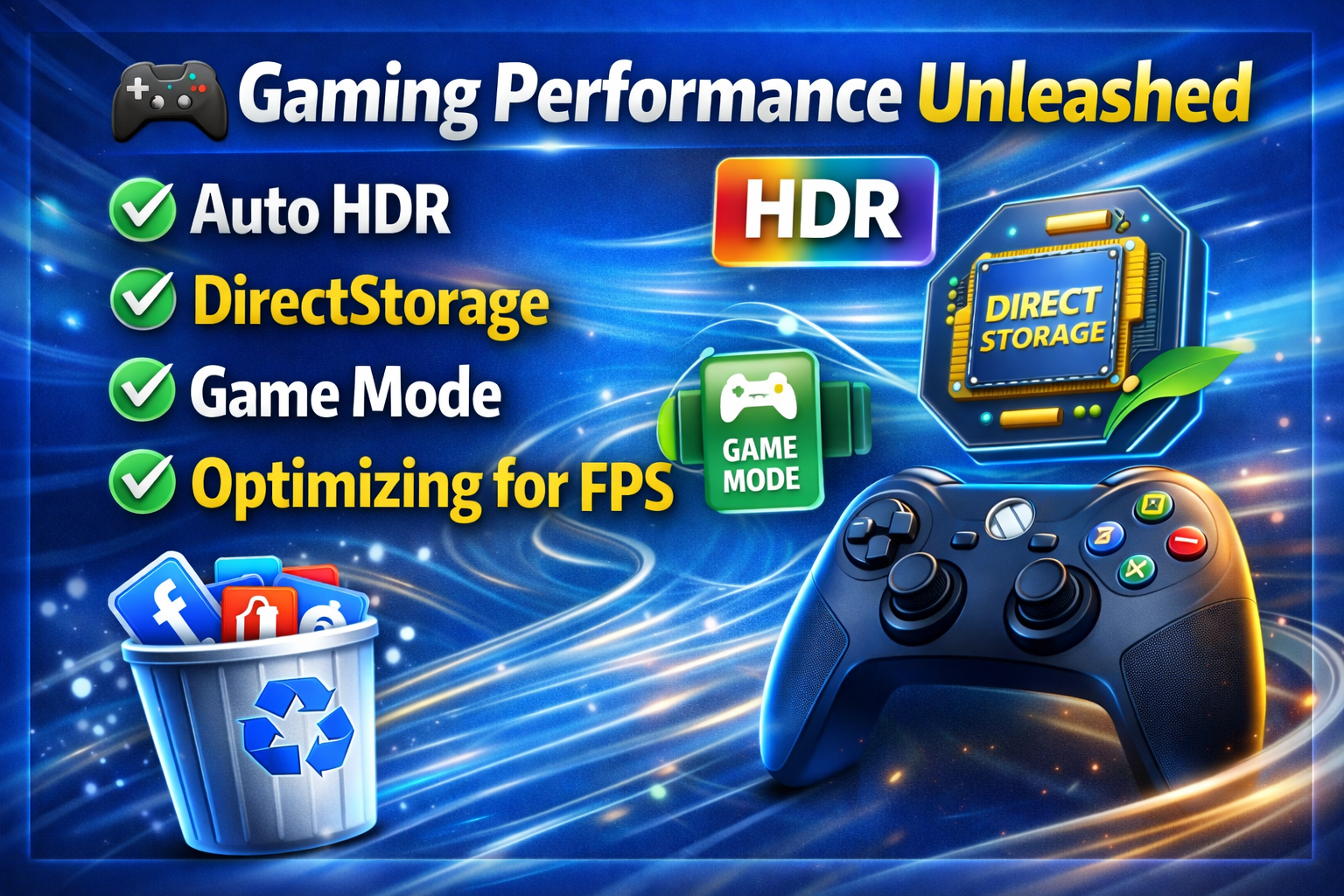
🎮 Gaming Performance Unleashed: Auto HDR, DirectStorage, Game Mode & Optimizing for FPS
Modern PC gaming isn’t just about raw hardware anymore. You can have an RTX 4090 and a Ryzen 9, but if your software settings are misconfigured, your gaming performance will feel sluggish, stuttery, and outdated. Fortunately, Windows 10/11 and modern GPUs ship with powerful features: Auto HDR, DirectStorage, Game Mode, and systematic optimizing for FPS. This guide dives deep into each one, giving you actionable steps to transform your gaming performance overnight.
🖼️ 1. Auto HDR: Breathe New Life into Older Games (and Boost Visuals Without an FPS Hit)
What Is Auto HDR?
Auto HDR is a Windows 11 feature (backported to some Windows 10 builds) that automatically scales standard dynamic range (SDR) games to high dynamic range (HDR). It analyzes the game’s output and intelligently expands the color gamut and contrast.
Does Auto HDR Affect Gaming Performance?
Surprisingly, Auto HDR has a negligible impact on FPS (usually <1-2% GPU overhead). Unlike ray tracing, it doesn’t require complex calculations. The performance cost is mostly in the display’s processing. For a massive visual uplift in titles like CS:GO, League of Legends, or Skyrim, it’s a no-brainer.
How to Enable Auto HDR for Peak Gaming Performance
- Press Win + I → System → Display.
- Turn on Use HDR.
- Under “HDR” section, click HDR settings.
- Turn Auto HDR to On.
- Calibrate using the Windows HDR Calibration app from the Store.
Pro Tip 🛠️
Not all monitors support true HDR. Look for DisplayHDR 400+ certification. On low-end HDR screens, Auto HDR can look washed out. Use the SDR content brightness slider (in HDR settings) to fine-tune.
| Setting | Recommended Value | Impact on Gaming Performance |
|---|---|---|
| Auto HDR | On (for DX11/DX12 games) | No FPS drop |
| SDR Brightness | 40-60 (adjust per game) | Zero |
| HDR Intensity | 80-100% | Zero |
⚡ 2. DirectStorage: The Next-Gen Loading & Asset Streaming Revolution
What Is DirectStorage?
DirectStorage is an API that allows your GPU to directly access your NVMe SSD without bogging down the CPU. Originally from Xbox Series X, it slashes load times and eliminates texture pop-in. For gaming performance, it doesn’t increase max FPS, but it eliminates stutter caused by asset streaming – a hidden killer of smoothness.
System Requirements for DirectStorage
- Windows 11 (best) or Windows 10 (version 1909+)
- NVMe SSD (PCIe 3.0 minimum, 4.0 recommended)
- DirectX 12 Ultimate GPU (NVIDIA RTX 2000+ / AMD RX 6000+)
- Game must support it (e.g., Forspoken, Ratchet & Clank: Rift Apart)
How to Verify DirectStorage Is Working
- Download DirectStorage Binaries from GitHub (Microsoft official).
- Run
EnableDirectStorage.ps1in PowerShell as admin. - Or use CrystalDiskInfo + GameBench – look for “BypassIO” flag.
Why It Matters for Optimizing FPS
When a game streams textures from a slow HDD or SATA SSD, the CPU becomes a bottleneck, causing micro-stutters (frame time spikes). DirectStorage reduces CPU overhead by up to 80% in asset decompression. Result: smoother frametimes, even if average FPS stays the same.
🔥 Key Insight: DirectStorage + a fast NVMe can reduce loading stutter in open-world games (e.g., Cyberpunk 2077, Spider-Man Remastered) by up to 40%.
🎯 3. Game Mode: Microsoft’s Built-in Performance Optimizer
What Game Mode Actually Does
Windows Game Mode is not a gimmick. When enabled, it:
- Prioritizes game threads on CPU cores (high priority).
- Suspends background Windows Update and telemetry services.
- Allocates more GPU memory to the active game.
- Suppresses notification pop-ups.
Does Game Mode Improve Gaming Performance?
Yes, but only on mid-range and budget PCs. On high-end systems (16+ cores, 32GB RAM), the difference is within margin of error. On a laptop with an i5 and 8GB RAM, you may see 5-12% higher FPS and more stable 1% lows.
Step-by-Step to Configure Game Mode for Best FPS
- Enable Game Mode: Settings → Gaming → Game Mode → On.
- Graphics Settings: Settings → Display → Graphics.
- Add your game (.exe) → Options → Set to High performance (dedicated GPU).
- Disable Game Bar (optional but reduces overhead): Settings → Gaming → Xbox Game Bar → Off.
Advanced Tweak: GPU Scheduling
Turn on Hardware-accelerated GPU scheduling (Settings → Display → Graphics → Default graphics settings). This lets the GPU manage its own memory, reducing latency. Reboot required.
| Tweak | Effect on Gaming Performance | Recommended |
|---|---|---|
| Game Mode | +5-12% FPS (low-end PCs) | ✅ Always On |
| GPU Scheduling | Lower input lag | ✅ On (NVIDIA/AMD 2022+ drivers) |
| Game Bar | Background CPU usage | ❌ Off |
🚀 4. Optimizing for FPS: Advanced Tweaks Beyond the Obvious
Most guides tell you to lower resolution and disable shadows. We go deeper. True optimizing for FPS requires a holistic approach that combines Windows settings, in-game options, and third-party tools.
A. Windows Power Plan & Core Isolation
- Power Plan: Set to High performance or Ultimate performance (type
powercfg.cplin Run). - Disable Core Isolation (Memory Integrity): Windows Security → Device Security → Core isolation → Off. This can gain 2-5% FPS on older CPUs.
- Turn off Virtual Machine Platform (VMP): Control Panel → Programs → Turn Windows features on/off → Uncheck VMP and Hyper-V.
B. In-Game Settings That Actually Matter for FPS
- Resolution Scaling: Use 80-90% render scale instead of lowering resolution – keeps UI sharp.
- Anti-aliasing: Use FXAA or off (MSAA/SSAA are FPS killers).
- Shadows: Set to Medium – High and Low look similar but cost 20% FPS.
- Volumetric Clouds: Off or Low (massive gain in open-world games).
C. Using Third-Party Tools to Monitor Gaming Performance
- MSI Afterburner + RTSS: Display frametime graph. Smooth = flat line.
- CapFrameX: Best for benchmarking 1% and 0.1% lows.
- Process Lasso: Permanently set game CPU affinity and priority.
D. NVIDIA & AMD Control Panel Settings for Max FPS
NVIDIA (NVCP):
- Low Latency Mode → Ultra
- Power Management → Prefer maximum performance
- Texture Filtering → High performance
AMD Adrenalin:
- Radeon Anti-Lag → On
- Tesselation Mode → Override/Off
- Texture Filtering Quality → Performance
Quick FPS Optimization Checklist 📋
- Disable fullscreen optimizations (right-click game .exe → Properties → Compatibility)
- Turn off Xbox Game Bar and Game DVR (Registry:
Computer\HKEY_CURRENT_USER\System\GameConfigStore→ SetGameDVR_Enabledto 0) - Use Intelligent Standby List Cleaner (ISLC) to clear memory standby lists (prevents stutter)
- Set GPU fans to 100% under load (MSI Afterburner) – prevents thermal throttling
📊 Comparison Table: Impact of Each Feature on Gaming Performance
| Feature | Avg FPS Increase | 1% Low (Stutter) Reduction | Best For |
|---|---|---|---|
| Auto HDR | 0% | 0% | Visual quality (no performance loss) |
| DirectStorage | 0-2% | -30 to 40% (big reduction) | Open-world, fast-travel heavy games |
| Game Mode | +3-12% | -5-15% | Low-to-mid range PCs, laptops |
| Optimizing for FPS (above tweaks) | +15-35% | -40-60% | All systems, especially older hardware |
✅ Final Verdict: Maximizing Your Gaming Performance
True gaming performance isn’t one magic button. It’s a layered approach:
- Enable Auto HDR for better visuals without FPS loss.
- Verify DirectStorage is active to eliminate asset streaming stutters.
- Turn on Game Mode and disable Game Bar for consistent CPU prioritization.
- Go deep with optimizing for FPS using power plans, in-game settings, and third-party tools like ISLC and RTSS.
Start with Game Mode and GPU scheduling – 5 minutes of work. Then move to DirectStorage verification. Finally, implement the advanced Windows tweaks. Your frame-time graph will thank you.
📌 Remember: The goal of optimizing for FPS is not just higher numbers, but smooth, stutter-free gameplay. Use CapFrameX to measure your 1% lows before and after. Happy gaming! 🕹️
About The Author